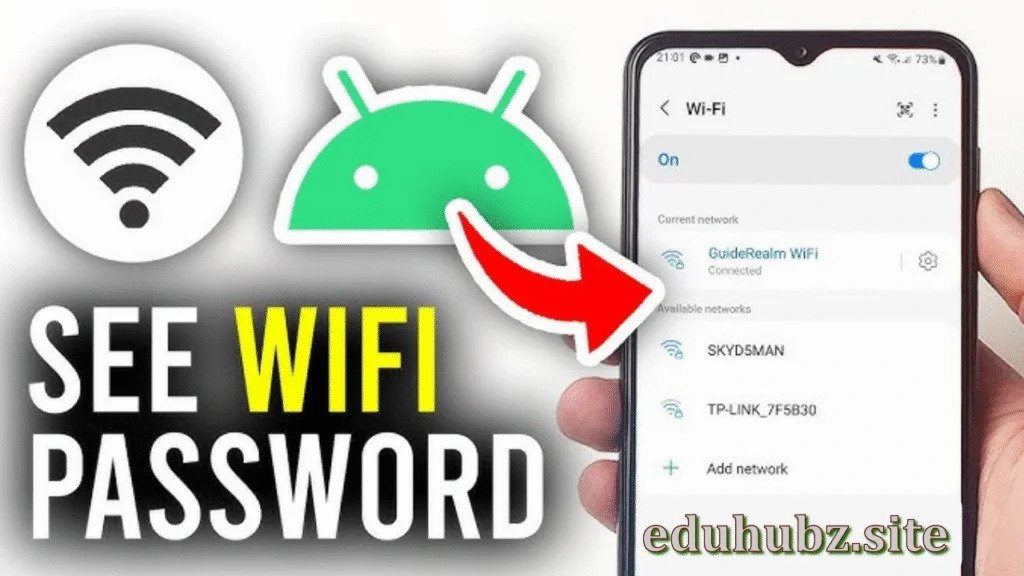
If you’ve ever forgotten your WiFi password and need to connect another device, don’t worry — Android makes it easier than ever to view saved WiFi passwords. In this updated 2025 guide, we’ll show you step-by-step methods to check WiFi passwords on any Android phone, from Android 10 to Android 15, and even for older versions.
This guide is written in short, easy paragraphs — perfect for mobile reading!
🔍 Why You Might Need to See Your WiFi Password
We often connect to WiFi networks once and forget the password later.
Maybe you just bought a new phone, want to share your internet with a friend, or need to connect your laptop.
Instead of resetting your router or asking your internet provider, you can simply check your saved WiFi password directly from your Android device.

📱 Method 1: Check WiFi Password Directly from Android Settings (Android 10 and Above)
If your phone is running Android 10 or newer (Android 11, 12, 13, 14, 15), you can easily view your saved WiFi passwords without any app or root access.
Here’s how:
-
Open Settings on your phone.
-
Tap Network & Internet or Connections (on Samsung phones).
-
Select Wi-Fi.
-
Tap on the Saved Networks option (you may need to scroll).
-
Choose the WiFi network whose password you want to see.
-
Tap Share.
-
You’ll be asked to verify your fingerprint, PIN, or password.
-
You’ll now see a QR code on the screen.
-
The WiFi password will appear below the QR code in plain text.
That’s it! You can share the QR code or copy the password directly.
💡 Tip: If the password doesn’t show below the QR code, scan the QR code with another phone’s camera or Google Lens. It will reveal the password automatically.
📷 Method 2: Scan the WiFi QR Code on Another Phone
If your phone shows only the QR code (no text password), here’s an easy trick:
-
Open the camera app on another Android phone.
-
Point it at the QR code shown on the first device.
-
A pop-up will appear — tap it.
-
You’ll now see the WiFi name (SSID) and password.
-
You can also connect instantly or copy the password.
This method is great if you’re trying to help a friend connect quickly without typing anything.
🛠️ Method 3: Using Google Account Sync (for Android 13+)
Did you know your WiFi passwords can be saved to your Google account?
That means you can retrieve them from any device that’s logged in with your same Google account.
Here’s how:
-
Go to https://passwords.google.com in any browser.
-
Sign in with your Google account.
-
Tap WiFi passwords (under Saved Passwords).
-
You’ll see a list of WiFi networks saved by your devices.
-
Tap the network to view the password (you might need to verify with 2-step authentication).
This is especially helpful if you’ve switched phones or did a factory reset.
🖥️ Method 4: Check WiFi Password Using Router Settings
If your Android version is too old or the Settings method doesn’t show the password, you can still check it from your WiFi router’s admin panel.
Follow these steps:
-
Make sure your phone is connected to the WiFi network.
-
Open your browser (like Chrome).
-
Type the router’s IP address in the address bar.
Common IPs:-
192.168.1.1 -
192.168.0.1 -
192.168.100.1
-
-
Log in using your router’s username and password.
(If you haven’t changed them, check the sticker on your router.) -
Go to Wireless Settings or WiFi Settings.
-
Look for Security or Password.
-
The WiFi password (Pre-Shared Key or WPA Key) will appear there.
⚠️ Important: Don’t change any router settings unless you know what you’re doing. Just copy the password and exit.
💻 Method 5: Use ADB Commands (Advanced Method)
This method is for tech-savvy users who want to retrieve WiFi passwords using a computer.
You’ll need:
-
A PC or laptop
-
A USB cable
-
ADB (Android Debug Bridge) installed
Steps:
-
On your phone, go to Settings → About Phone → Build Number.
-
Tap Build Number 7 times to enable Developer Options.
-
Go back, open Developer Options, and enable USB Debugging.
-
Connect your phone to your PC with a USB cable.
-
Open Command Prompt or Terminal on your computer.
-
Type the following command: